How to use Lobby Voice
Talk to your friends from the title screen in a few clicks. No server, no setup.
What you need
- Minecraft 26.3 with Fabric, NeoForge or Forge
- Lobby Voice and Simple Voice Chat (plus Fabric API on Fabric)
- Everyone in the group needs Lobby Voice 1.2.1 or newer
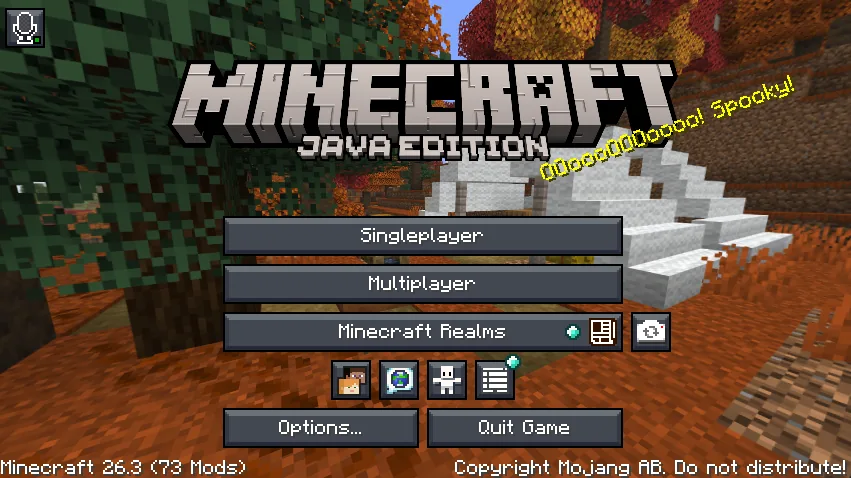
Click the microphone on the title screen
It's in the top-left corner. The small dot shows your connection: green means you're connected.
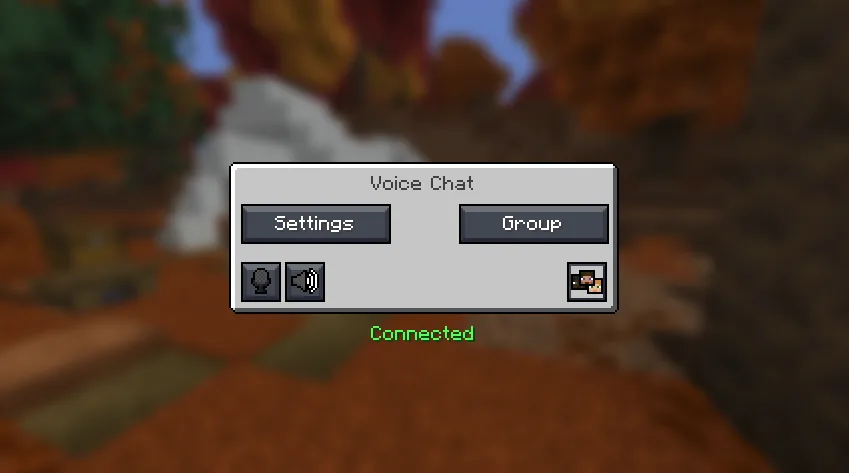
Open your group
Check that it says Connected in green, then click Group.
- The two buttons on the bottom left mute your microphone or turn voice chat off.
- Settings is covered in step 7.
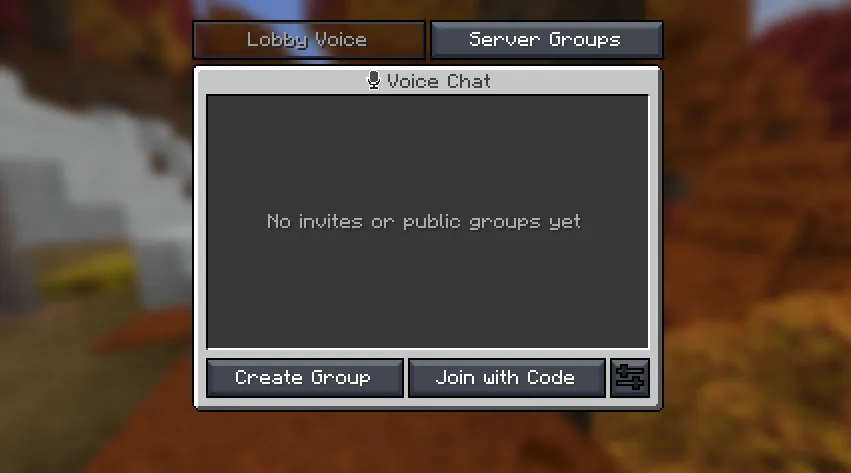
Create a group, or join one
- Create Group starts a new voice group.
- Join with Code joins a friend's group.
- Invites from friends and public groups show up in the list, each with a Join button.
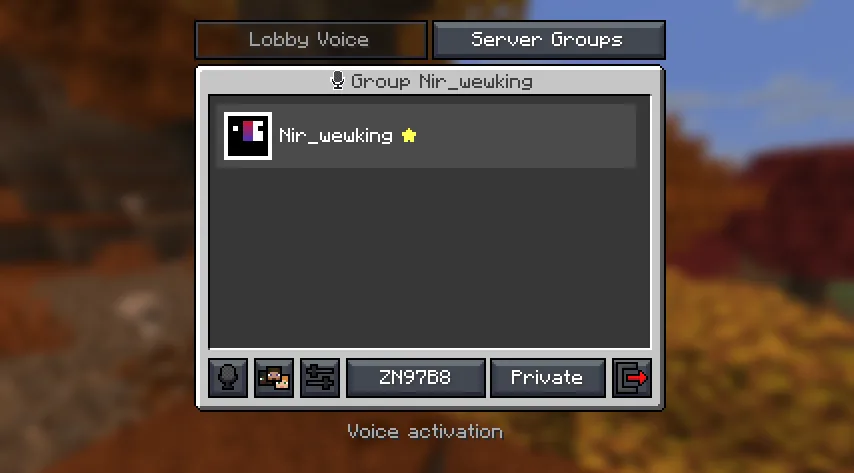
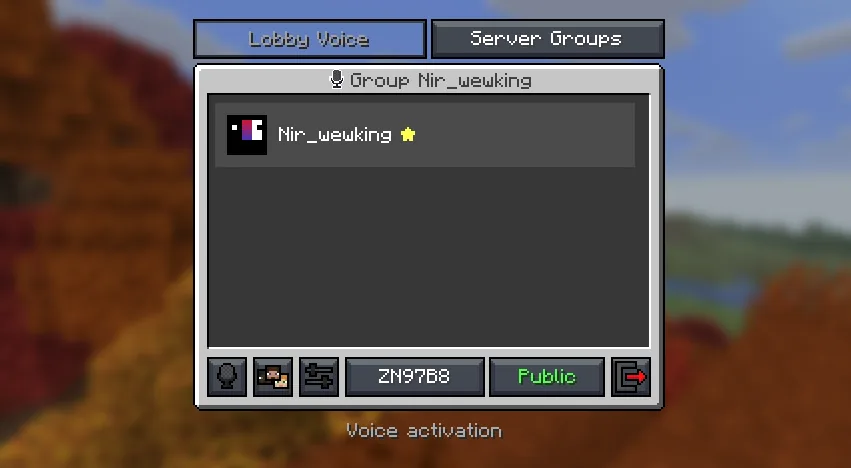
Share your group's code
Your group gets a 6-character code, like ZN97B8. Click the code to copy it, then send it to your friends.
- The buttons along the bottom: mute, invite friends from your Minecraft friends list, settings, and leave the group (red arrow).
- The ★ marks the group owner.
Optional: make it public
Click Private to switch it to Public. Anyone can then find your group and join it, in game or on the public groups page.
Only the owner can change this. Leave it on Private if you only want people with the code.
Your friend joins with the code
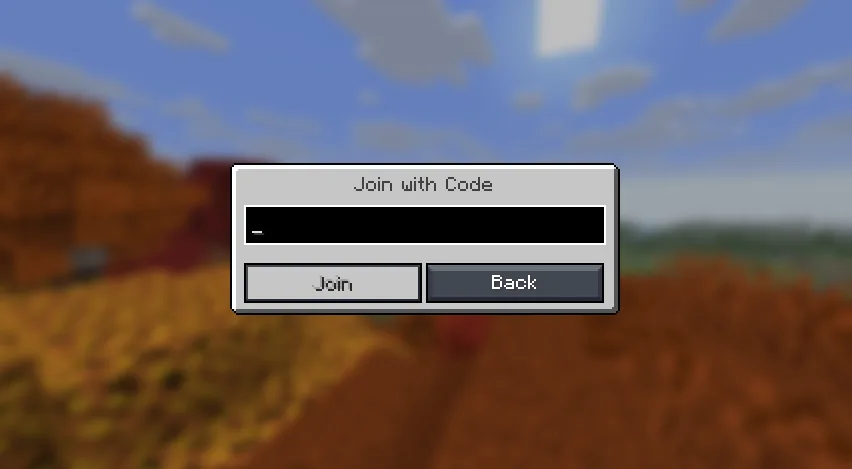
On their side: microphone → Group → Join with Code, type the code, and press Join (or Enter). Lowercase works too.
Once they're in, you'll see each other in the group. A green ring around a face means that person is talking.
Adjust your settings
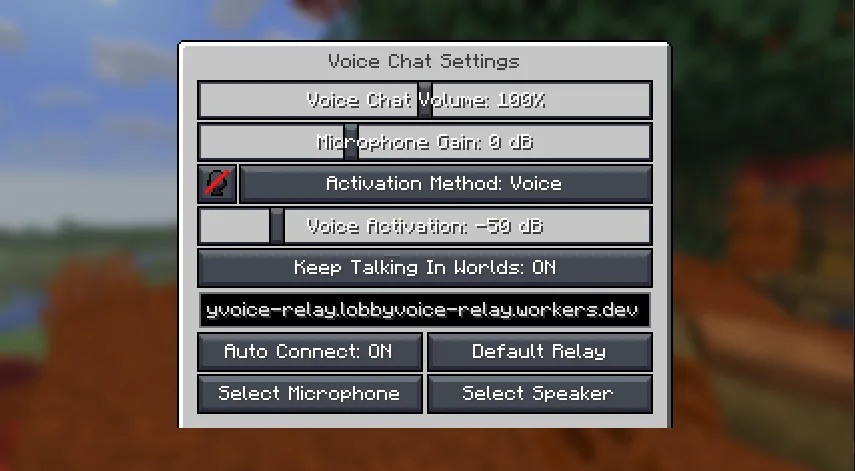
These are shared with Simple Voice Chat, so you only set them once.
- Activation Method: Voice sends when you speak, Push to talk sends while you hold a key (default V).
- Voice Activation: raise it if background noise keeps you "talking".
- Select Microphone / Select Speaker if the wrong device is used.
- Keep Talking In Worlds: stay in the lobby call after you join a world or server.
- Leave the relay address alone. Default Relay puts it back if you changed it.
That's it. Have fun talking!
On a server, Simple Voice Chat's menu (V) gets a Lobby Voice tab, so you can switch between the two.
Download Lobby Voice Get help on Discord